Four iPhone Duo Folding Poses—and the Best Use for Each One
Closed, open, tabletop, or tent: learn what each iPhone Duo posture does well, where it feels awkward, and which apps benefit most.
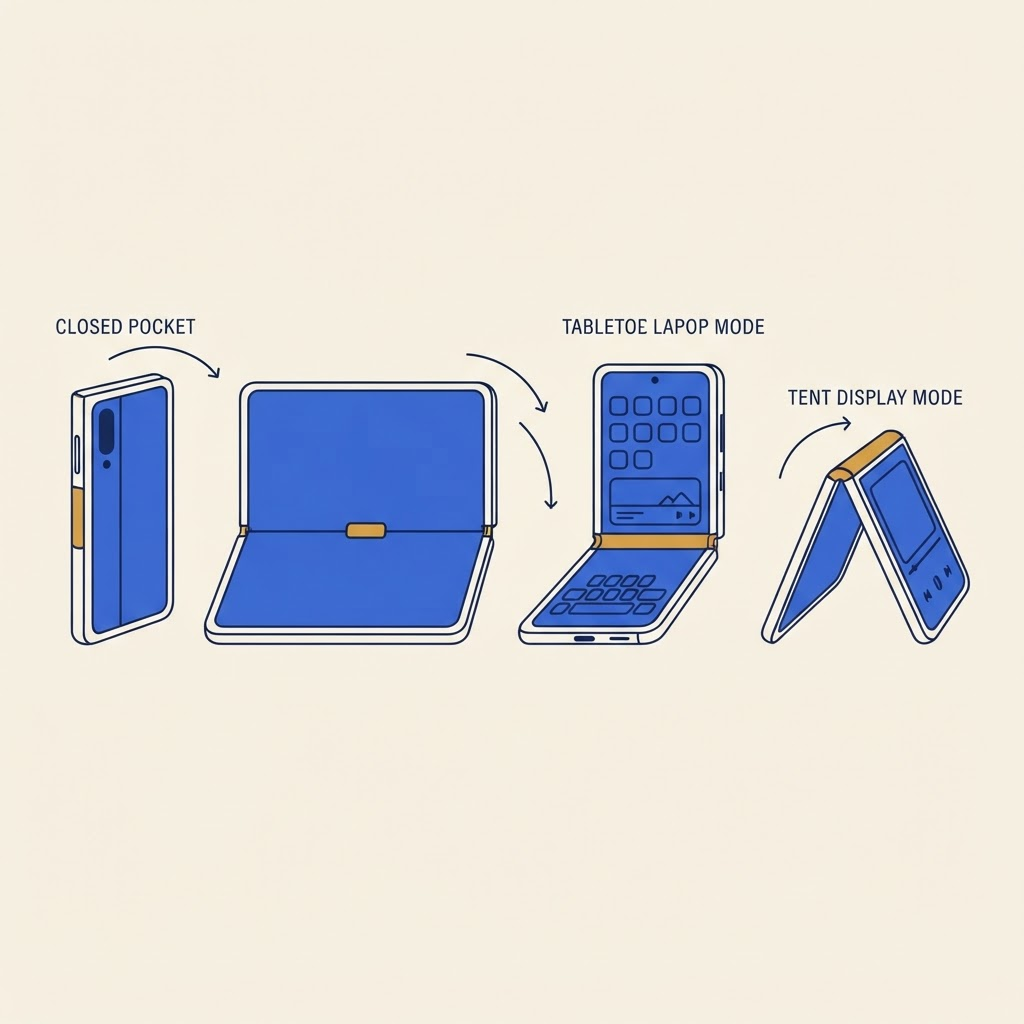
The useful question is not which pose looks futuristic. It is which pose removes a stand, an extra tap, or an uncomfortable grip from the task you are doing.
1. Closed: the quick-check phone
Closed mode uses the 5.4-inch outer display and keeps the device narrow enough for common one-handed tasks. It is best for:
- checking messages and notifications;
- changing music or podcast playback;
- boarding passes and Wallet;
- quick map directions;
- short replies;
- taking a conventional photo.
Closed mode can also save battery compared with keeping the larger inner display active, although radio use, brightness, and the app matter more than screen size alone.
The tradeoff is density. Long documents, detailed editing, and complex dashboards can feel cramped. Treat the outer screen as a complete phone, not a punishment—but open the device when more context genuinely helps.
2. Fully open: the pocket workspace
The 7.6-inch inner display suits reading, comparison, creation, and side-by-side work. It is useful for:
- an article beside notes;
- a map beside an itinerary;
- email beside a calendar;
- photo editing with controls away from the image;
- a video beside a related app;
- larger game views and controls.
Fully open does not automatically make every app better. A stretched single column can create long lines and excessive reach. Look for apps that reorganize rather than merely enlarge. Our best apps for iPhone Duo explains the difference.
3. Tabletop: the tiny laptop
Partially fold the phone so one half rests on a surface and the other stands upright. Depending on the app, the lower half can become controls while the upper half presents content.
Good uses include:
- hands-free video calls;
- camera timers and group photos;
- recipe videos;
- timers and focus sessions;
- watching a short video at a café;
- recording a desk demonstration.
Tabletop posture is convenient, not indestructible. Use a stable, dry, non-slip surface. Some cases can reduce grip or prevent the angle you want.
4. Tent: the glanceable display
Place the device like an inverted V so a display faces outward. Tent posture works well when you want to look without touching:
- a clock or timer;
- music information;
- a slideshow;
- a simple sports score;
- turn-by-turn cues on a stationary desk;
- a subject-facing camera preview.
Apple’s iOS 27.1 experiences make the outer display more purposeful, but not every app supports every posture. StandBy testing also has limitations in the initial Xcode 27.1 beta, so third-party behavior may evolve.
How to choose without overthinking it
Use closed mode for speed, open mode for context, tabletop mode for hands-free interaction, and tent mode for glanceability. If changing posture adds more friction than it removes, stay where you are.
Protect the hinge and inner display
Never force a preferred angle beyond the hinge’s natural range. Keep grit away from the folding area, and do not place cards or objects inside before closing. The inner display’s protective layer is part of the screen system; read our screen protector care guide before cleaning it.
For case choices that preserve or limit different postures, see the iPhone Duo case guide.
A one-day posture experiment
Try assigning one part of your day to each mode:
- Closed during a commute.
- Open for a focused reading or planning session.
- Tabletop for lunch-time video or a call.
- Tent as an evening timer or display.
At the end, keep only the behaviors that felt natural. The fold becomes valuable when it fades into muscle memory, not when you constantly search for a reason to use it.
From the maker
Get PromptSlate Studio on the App Store
Write, prompt and record in one focused workspace. Out now — $9.99 one-time, no subscription. Every download supports independent development of new apps.
See PromptSlate Studio details · Also in the works: DuoSketch
Spotted something to fix, or an app we should cover?
This article is independent research, cross-checked against Apple's developer documentation. If something's out of date, or you know an app that deserves a look, let us know — and if you're building for iPhone Duo yourself, we're happy to talk.
hola@ayudantedigital.es